
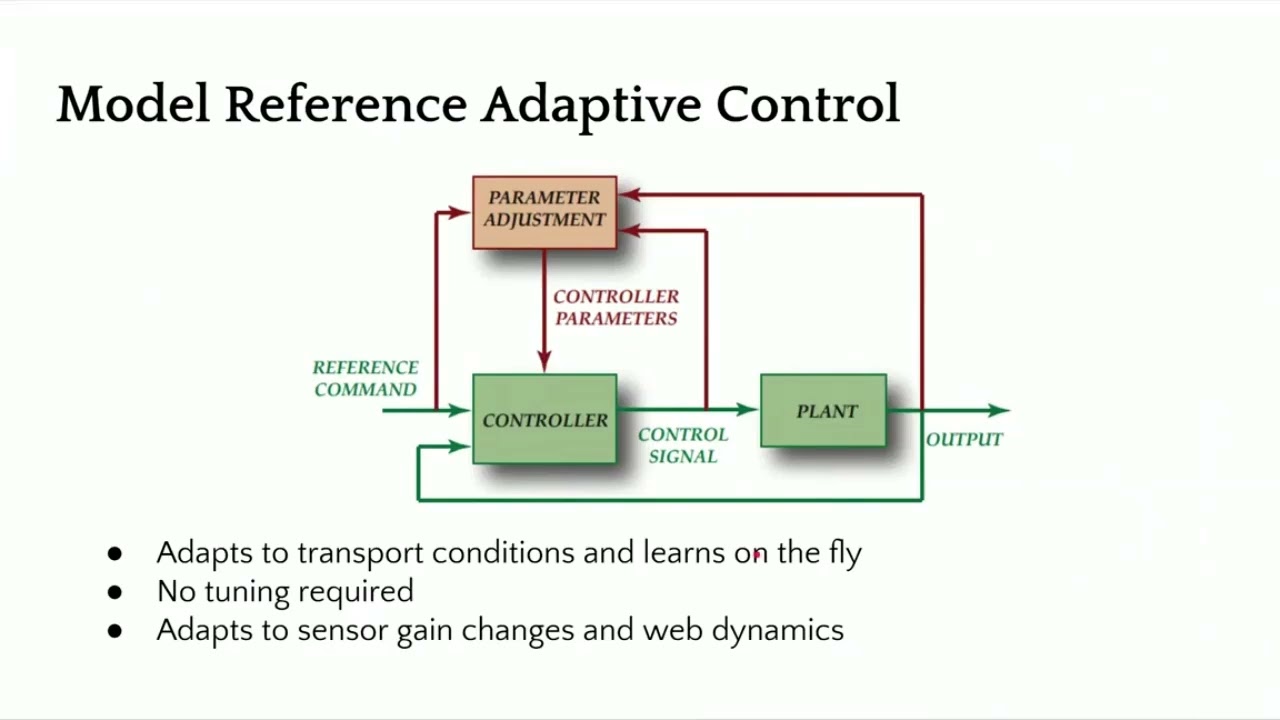
In this installment of the Webinar on Web Guiding Fundamentals, we delve deeper into the pivotal role of controllers in web guiding systems. The episode covers the function of controllers, components such as gain, operating voltage, and sensor inputs, and explores the control structure for web guide systems, including fixed gain proportional control and adaptive control technologies. By examining open loop and closed loop responses, we highlight the importance of optimal tuning for improved performance.
Transcript
Show full transcript (917 words)
[Music] The controller is the central processor that takes the sensor input, computes the corrective action and sends that information to the actuator. Nowadays, the controllers also include human machine interface like an operator interface. Previously, the controller could be standalone. It didn't really have an interface.
So the controller could be analog in the sense of electrical analog or pneumatic analog controllers. So basically controller is taking the sensor signal and then making the necessary computation so that the actuator can be positioned at the desired location. In terms of terminology, gain is one of the most common things that you're going to hear in controllers. That's basically saying how quickly or what kind of a dynamic response you need.
gain is going to do that. Other things that you're going to see is operating voltage, power consumption, whether you have a operator interface or not. And then whether this is a controller for a servo motor or stepper motor, they have drives or drivers for it. How many sensor inputs you have?
Does it have Ethernet connectivity? Does it have remote control and stuff like that? In terms of the control structure, most control systems have webguide control systems have this kind of a structure where you have a fixed game proportional control. You really don't need more than a proportional control for a web guide because there's integrator built into it.
But usually you have something like you have a motor, it might have a current loop, it might also have a velocity loop with a tachometer. Then you have a guide structure which has its own transmission ratio. And there's the web dynamic which is unknown. Web dynamics means that if you move the guide 1 mm, how much is the web going to move?
That really depends upon transport conditions, the stiffness of the web, tension and all those kind of things. And then finally, you have a sensor that measures the edge position and then it sends that to a position controller. So this is a pretty simple architecture for most webguide controllers. They are fixed gain and most often they are d-tuned because of the stability and all the other reasons.
Most web guides their controller is kind of d-tuned for the conditions. If you want to get the best out of it, you would need to retune them. The tuning has to be based on the optimal performance because the web dynamics is unknown. Most often DC motors or DC servo motors or stepper motors are used in this kind of control structure.
There are some other advanced control technologies like adaptive control where the controller can adapt or learn on the fly and tuning may not be required. When we say learning on the fly, it means that it adapts to sensor gain changes or the dynamics of the web. In our case, we have a similar structure as the one I showed first. It's still a fixed game controller, but with some motion control aspects built into it in terms of curving the position and having trajectories for velocity, we can increase the stability of the controller and provide a pretty aggressive output performance.
You can have a current loop, a position loop, if you have a encoder, and then a position of the actuator here. And finally, the web position, which includes the web dynamic. Just to give you an idea, we have a lot of different things that we can do with the controller. But the dynamics is basically if you move the this is showing a step response, openloop step response for a web.
This was like a non-woven web that we had at different speeds and see how it behaves. And you can see that when you have a step, even though it's open loop, it's trying to get there. The openloop dynamics is different based on how fast you're running. So faster you're running, it gets to that desired location uh as fast as possible.
But the slower you're running, it takes longer. Again, this is an openloop response. This is the final part of the whole web guiding, which is the dynamics of the web. Now if we add a controller to it then we can have a much better response and actually push the web guide.
In this case at the two different speeds that we were running at this was the reference change and this was the actual response of the web guide at the sensor. And then when we have another sensor installed once span downstream you can see how long it takes for that to go through. When we have a step response, we were able to get up to about 170 mm/s or like 7 in per second. This is about close to 70% improvement over an openloop response.
And again, this is closed loop. That means you're actually actively guiding the web. So with a proper control structure design, you can get a high bandwidth system close to 6 hertz or something like that and then even get a well damped system. So you can actually have an aggressive correction if you need to.
In terms of the characteristics of a good webg guiding system, it should have the ability to attenuate disturbances, easy to tune. Obviously, it needs to be stable, has good processing power so that it can process multiple sensors, have industrial Ethernet connectivity. These are for advanced functionalities. And then smart intelligence for industry 4.0.
[Music]
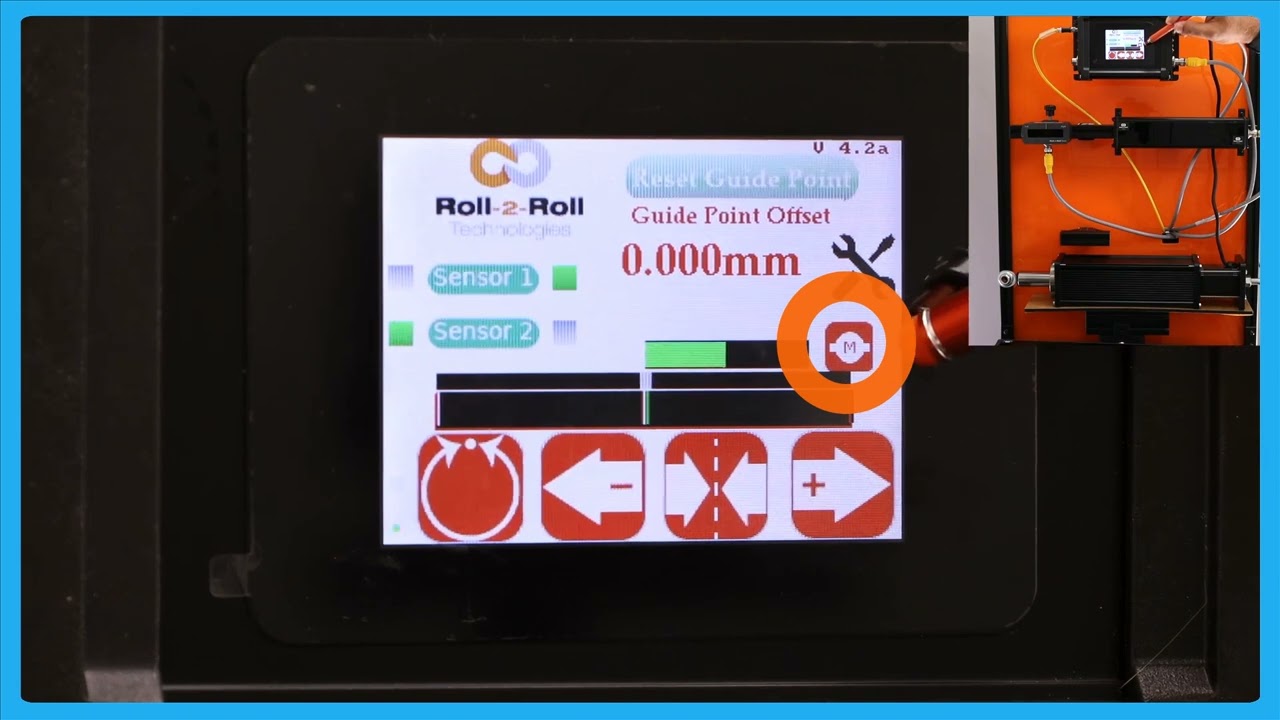
Exploring the Dual Rail Power Supply Feature of the SCU6x Controller
In this video, we delve into the dual rail power supply feature of the SCU6x Controller. This feature provides a separate power rail for the driver and the logic, enhancing safety by allowing the power to the driver part to be cut off when necessary, such as during access to a web guide. Demonstrations include how to indicate power status and control the actuator via this dual rail system.
Transcript
Show full transcript (501 words)
hello everyone this is Arin sadri from Roll to roll Technologies today we're going to talk about a couple of different features that we have we're going to see one of the features of the seu 6X controller wherein we can have a dual rail power supply this means you have one rail of power supply for the driver and one rail of power supply for the logic or the controller the main reason why somebody would have this is in the cases of safety so let's say you have a web guide inside a guard door and you don't want the web guide to move when the car door is open or somebody is accessing the machine close to the web guide we can cut off the power supply to the driver part this is mainly for safety reasons if you're familiar with our SCU 5 controller you would know that this particular motor icon would be r in that case any seu 6 firmware version more than 4.2 will have this power indicator so this green power indicates that there is power to the drive the power to the logic is powering the display itself so now I can move the actuator back and forth and you can see that the actuator is moving and if you want to cut off the power supply to the drive I can do that I have a switch here that would cut off and now the power is cut off to the actuator and that's indicated by red and now if I try to move the actuator I won't be able to move the actuator and as soon as the power is turn back on and you get that green signal there and the power is on now I should be able to move the actuator so that's essentially it this is the feature where you have the dual rail power supply that allows you to turn off and on the second rail which is the driver rail in the SCU 6X mxd controller we do have the option where we have a separate Port that powers that which is a 48 volts DC power supply again we can do the same functionality there if the power is cut off to that rail then we would be able to see that indication on the screen this dual rail power supply feature is only available on the seu 6X controllers with firmer version 4.2 or higher this means that there are some older hardware and older firmware where you won't be able to see that feature or you won't be able to have that same functionality in those cases you can still use the second rail to turn off power and turn it back on the only caveat to that is there is no IND indication of whether the power is there or not so all of this features available any controller with the firmware version 4.2 or higher and both for sc6x MD and sc6x mhd

A Common Customer Concern, Controlling the Actuator when the Web Breaks
In this video, we address a common customer concern about actuators in the event of a web break, focusing on the safety features of the SCU6x Controller. We cover how the actuator will not drive to a mechanical limit due to electronic limits, preventing burnout.
Transcript
Show full transcript (510 words)
One of the common questions that we get asked from our customers is about our actuator in the sense that if the web breaks will the actuator keep driving to one direction or not. We saw that feature before where if we enable that lock on lost edge when the web breaks the actuator doesn't move and stays put. Now in the scenario where you don't have that enabled will that drive the actuator to its mechanical limit? The answer is no.
We have electronic limits set on the actuator. That means that even if there is no web, the actuator is only going to go to its electronic limit and it's not going to go any further than that and it's going to stop there. So there is no issue with the actuator burning out or anything like that and hitting the mechanical limit. These are artifacts of older web guides which does not have that intelligence.
Ours is all digital stepper motorbased system and we have a lot of options where we are able to have complete control over the actuator position and we can set those electronic limits to avoid the actuator hitting any mechanical limits. For those customers who want a little bit more safety conscious thing where they want to have limit switches, we do have that option. So this controller SC SU6X controller allows you to connect two limit switches apart from the servo center proximity sensor. And these limit switches, even though we call it switches, they're not mechanical switches.
These could be any NPN proximity sensors that just looks at a flag that's going to tell what the limit is. So you have a left limit switch and a right limit switch. When we have that enabled, if the actuator is going in the left direction and hits the left limit switch, it will not move anymore. This limit switch would be a proximity sensor.
As soon as that flag is seen by the proximity sensor, in that left direction, it will not move. It will still move in the right direction, but not in the left direction. This is an hardware implementation. So there's no software involved in this.
Even if our system has some things that we have set up, it'll be an hardware limit there. Likewise, you have a right limit switch, which is an NPN proximity sensor. When the actuator moves and brings a flag in front of the right limit switch, the actuator will stop automatically. So, it's more like a belt and suspender and suspender approach.
So, you have three different options. One is the actual stroke limit on the actuator electronically and then you have these limit switches and obviously you have the lock on lost edge. All of these things is going to allow you to be able to have a longer life for the actuator and this is again with the advances that we have with our controller. We have a lot of flexibility in controlling the actuator and increase its life.
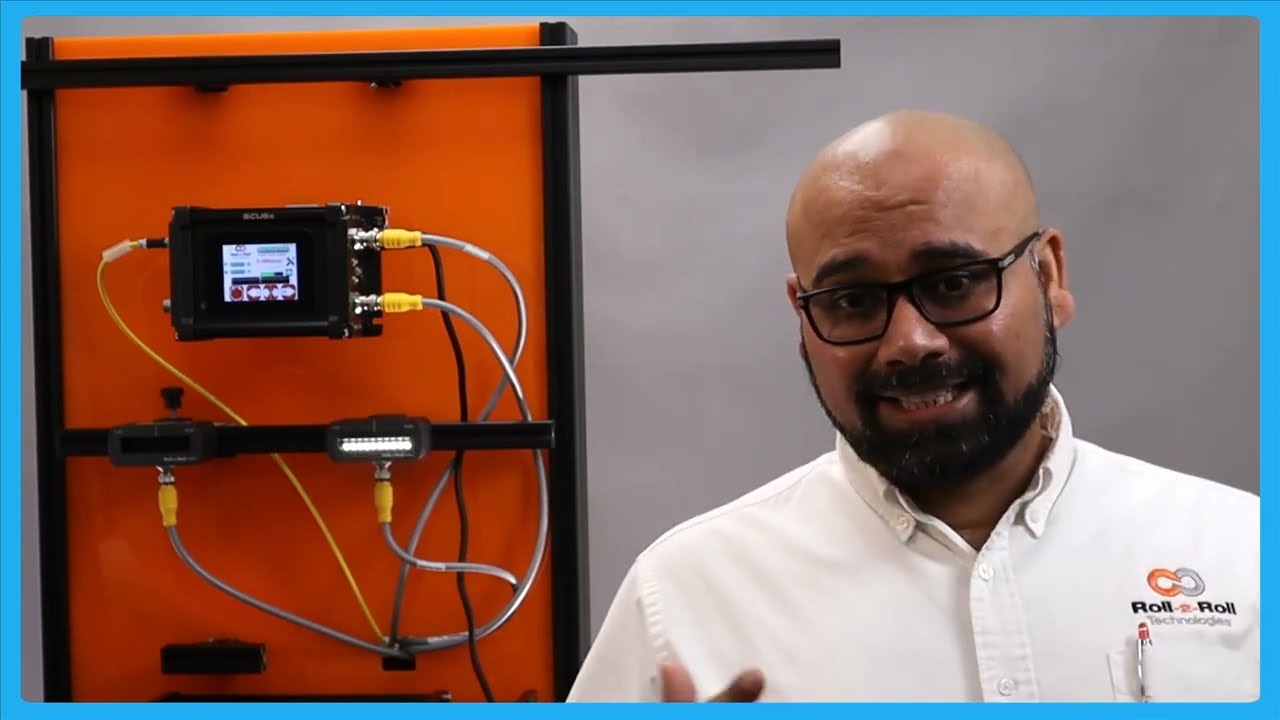
In this episode, we explore how to utilize the center guiding feature of the SCU6x Controller with two sensors, focusing on automatic adjustments and setup. We demonstrate the mechanics of center guiding using an actuator and explain the importance of using sensors of the same range. With detailed visuals, we show how to reset the guide point and align the material to the center of the machine.
Transcript
Show full transcript (1038 words)
So, one of the other things with the SC6X controller is that we can do center guiding with two sensors and it can be done automatically. We talked about how to set up the different sensors for different configurations. So, please take a look at those videos. In this video, we're just going to show you how it works with an actuator, how things look, and how to reset the guide point for center guiding.
What we have is a couple of sensors connected here. One of the things with center guiding is that we would like the two sensors to be of the same range. Even though the system would work when you have two different ranges just on the display to make it simpler and not cause any confusion, it's better to use two sensors of the same range. Right now, I have an infrared sensor and a white light sensor just for illustrative purposes.
In reality, anytime we are doing edge or center guiding based on the edge of the material, we're going to always use an infrared sensor. So, let's go back to the screen and see how it looks. This sensor is set to see the left edge and this sensor is set to see the right edge. So, if I have a material that is presented, you can see that it's seeing the left edge and the right edge.
The green in the middle is showing the center line position. And in this particular case, we got the guide point offset to be zero. So if I set it to automatic, then the actuator is going to move back and forth based on if the center position is within the guide point to the left or to the right. And that's essentially how the center guiding works.
There are two main reasons why somebody would use center guiding. One is if you're changing web widths and you want to align the material to the center of the machine, then center guiding is the best option where you would place two sensors on either side and the those sensors are equidistant from the center line of the machine. So when the web width changes, you don't ever have to move the sensors and it automatically adjusts itself because it's going to look at the left portion of the web seen by the left sensor and the right portion seen by the right sensor. This is one of the common features that we have or common value proposition from our products is that our sensors can go anywhere from 48 mm up to 960 mm.
That means you can have a width change of about 96 mm up to about 1920 mm without needing to move the sensor. This provides a lot of range and flexibility to be able to have a system that can adapt to wick changes on the flight. The older generation systems might have some actuators that move the sensors based on the wick change. And more often than not, what happens is that those actuators have their own control loop that needs to be tuned.
The actuators can wear. These are the actuators for the sensors that could wear over time. And that creates an issue. And then the response time, especially when you do a wid change on the fly with those kind of systems, is going to be much lower than compared to a system with a sensor that is wide enough to cover all the width changes.
So that's one of the main reasons for using center guiding is that you can do different widths without moving the sensors whenever the width changes. The second main reason why you would use center guiding is that let's say you have an edge especially some kind of an extruded edge and the edge quality might not be great. So before it goes into a slitter you you have an edge and the edge is not that great. Instead of aligning to one edge of the web, in that case if you use two sensors and then use the center line position, it takes the average of the left edge and the right edge and does the measurement that is going to be the center line measurement and it's going to guide the web to the center.
This is one of the biggest advantage for using two sensors and doing the center guiding and especially when you have irregular edges, those edges variations are not going to be identical on both sides. This smooths out your edge profile and allows you to guide the web in the middle of the machine and that significantly improves the wound roll quality especially if you don't have a pretty good slit edge. So the advantage is that you are averaging based on two edge measurements and this helps in smoothing out the edge position. Those are the two main reasons why you would use center guide.
One of the other things that I want to show with center guiding is that you can do the reset guide point just like what we did with edge or center guiding with two sensors. Let me show you that. Going back to the screen here, we have the web now and the green position indicates the center line position. If the web is moved that way and for whatever reason you need to do that, you could do the same reset guide point and accept.
Now the guide point offset is there. If the edge position goes on either side, the actuator changes its direction back and forth. This is for doing the center guiding with the point offset. Now, like I said, it's not usual for you to change the guide point offset with center guiding just because you want the material to be aligned to the middle of the machine.
The reason why we allow you to do that is that let's say you had not installed the sensor at the right location to begin with. Instead of going and physically moving the sensor, you could just move the offset. And that's the reason why we allow a guidepoint offset even when we do center guide.

In this video, we explore the two main reasons for using center guiding in web handling systems, focusing on the advantages it brings when dealing with varying web widths and poor edge quality. The SCU6x Controller's advanced sensor technology allows seamless adjustments without the need to move sensors, accommodating significant width changes efficiently. This ensures high response times and minimizes wear on actuators.
Transcript
Show full transcript (529 words)
there are two main reasons why somebody would use Center guiding one is if you're changing web widths and you want to align the material to the center of the machine then Center guiding is the best option where you would place two sensors on either side and this those Those sensors are equidistance from the center line of the machine so when the web width changes you don't ever have to move the sensors and it automatically adust adjust itself because it's going to look at the left portion of the web seen by the left sensor and the right portion seen by the right sensor this is one of the common features that we have or common value proposition from our products is that our sensors can go anywhere from 48 mm up to 960 mm that means you can have a WID change of about 996 mm up to about 1920 mm without needing to move move the sensor this provides a lot of range and flexibility to be able to have a system that can adapt to Wick changes on the flight the older generation systems might have some actuators that move the sensors based on the wick change and more often than not what happens is that those actuators have their own control Loop that needs to be tuned the actuators can wear these are the actuators for the sensors that could wear over time and that creates an issue and then the response time especially when you do a WID change on the fly with those kind of systems is going to be much lower than compared to a system with a sensor that is wide enough to cover all the WID changes so that's one of the main reasons for using Center guiding is that you can do different widths without moving the sensors whenever the WID changes the second main reason why you would use Center guiding is that let's say say you have an edge especially some kind of an extruded Edge and the edge quality might not be great so before it goes into a slitter you you have an edge and the edge is not that great instead of aligning to one edge of the web in that case if you use two sensors and then use the center line position it takes the average of the left Edge and the right Edge and does the measurement that is going to be the center line measurement and it's going to guide the web to the center this is one of the biggest Advantage for using two sensors in doing this inter guiding and especially when you have irregular edges those edges variations are not going to be identical on both sides this Smooths out your edge profile and allows you to guide the web in the middle of the machine and that significantly improves the wound roll quality especially if you don't have a pretty good slit Edge so the advantage is that you are averaging based on two Edge measurements and this helps in smoothing out the edge position those are the two main reasons why you would use Center guide
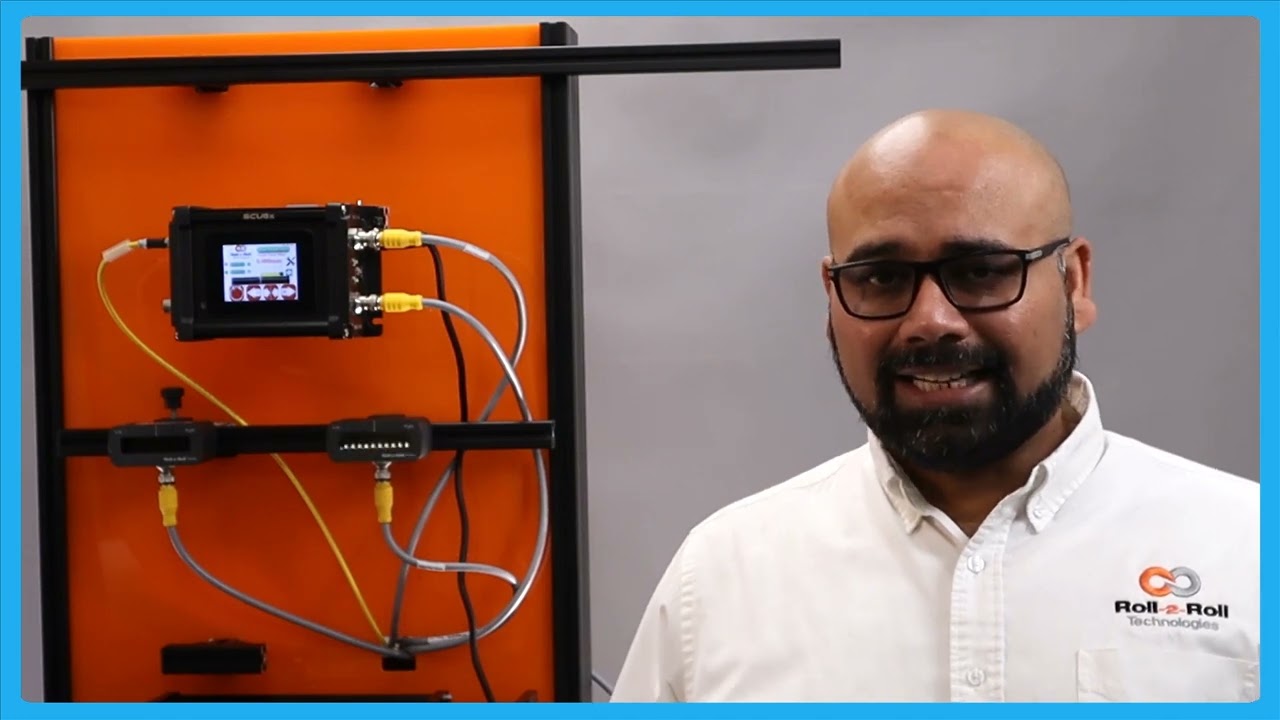
Resetting the Guide Point in Center Guiding with SCU6x Controller
This video explains how to reset the Guide Point in Center Guiding using the SCU6x Controller. It demonstrates the process of center guiding with two sensors and showcases how to reset the guide point and adjust the offset. You'll learn how to manage the actuator direction changes and understand the reasons for allowing a guide point offset even when aiming for center alignment.
Transcript
Show full transcript (209 words)
One of the other things that I want to show with center guiding is that you can do the reset guide point just like what we did with edge or center guiding with two sensors. Let me show you that. Going back to the screen here, we have the web now and the green position indicates the center line position. If the web is moved that way and for whatever reason you need to do that, you could do the same reset guide point and accept.
Now the guide point offset is there. If the edge position goes on either side, the actuator changes its direction back and forth. This is for doing the center guiding with the point offset. Now, like I said, it's not usable for you to change the guide point offset with center guiding just because you want the material to be aligned to the middle of the machine.
The reason why we allow you to do that is that let's say you had not installed the sensor at the right location to begin with. Instead of going and physically moving the sensor, you could just move the offset. And that's the reason why we allow a guidepoint offset even when we do center guide.
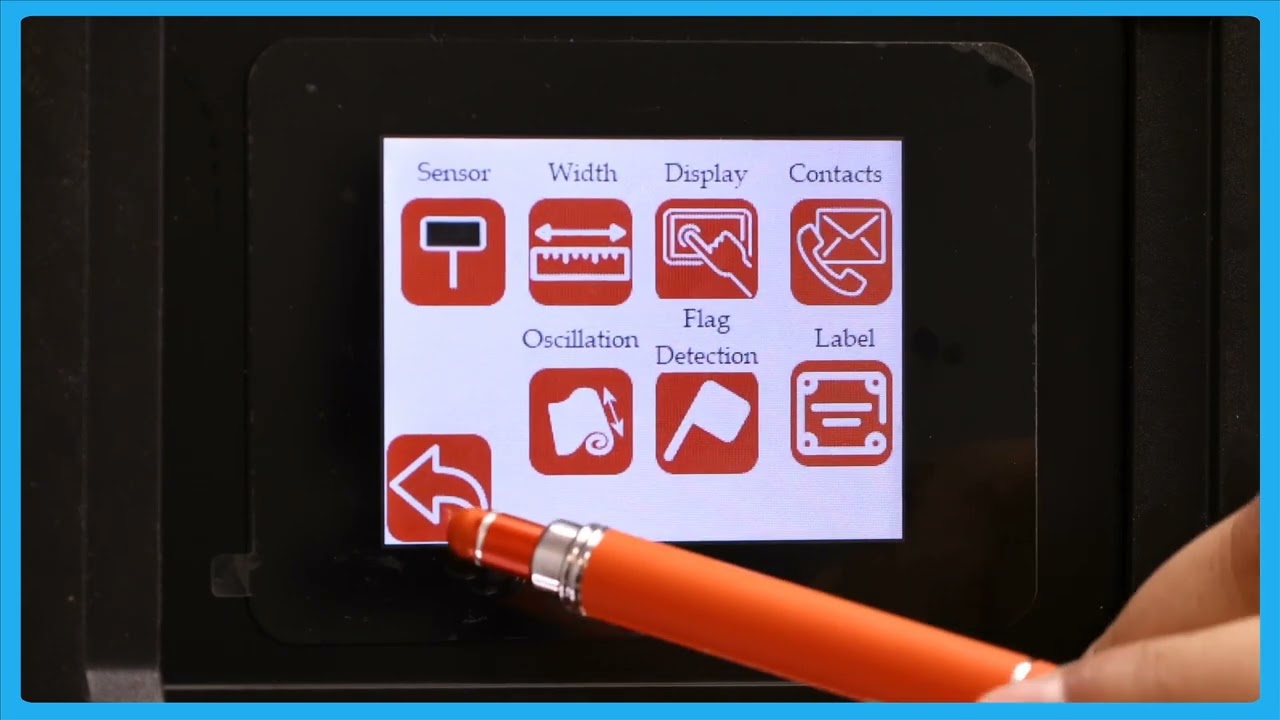
This video looks at protecting access to the operator and power user screens through the use of password protection in the SCU6x Controller. It shows how to enable and disable the password, explains the different user levels, and how to change the passwords. The video also covers important information about default passwords and the process to reset them if forgotten. Operator Screen Access Protection.
Transcript
Show full transcript (556 words)
We talked about this tools icon here and one of the common questions that we get asked is is it possible for us to lock the screen so that only people who have privileges to access that have access to it and we can do that in our password screen right here. This password screen allows the operator or the power user to lock certain parts of the controller so that the access is restricted to those who are familiar and knowledgeable about what the consequences of the changes would be. So there are two main user levels. This one on the top is what we call as an operator level axis.
This would be any operator that needs to change certain things with respect to the controller including setting up the sensor. If you want to do line guiding, contrast guiding or pattern guiding, all of those are available to the operator through the operator screen. If I click on that, you can see the things available for the operators to change. Again, setting up the sensor.
If you're doing width measurement, you can look at the different width measurement options that we have. We'll go into detail about this in a later video. And then the next level of access we have is the power user. This is somebody like a maintenance professional or anybody involved in commissioning our system.
Most of the functionalities here are one-time kind of things that you need to do when you try to install the system for the first time. So again a setting related to the actuator some other high-level sensor related settings controller options and communication if the customer wants us to enable or disable certain access levels we can do that and that's available in the power user to be able to do it. One of the questions that we get asked all the time is how do you know when a password is enabled or not? As long as you see these icons, that means that the passwords are not enabled.
If I go in and enable the password on the operator screen, then that icon has disappeared. So, you won't be able to have access to that unless you enter the operator password. Likewise, if I go in and lock the power user screen, we won't be able to see the the icon for that. Nobody would be able to enter it unless you enter the password.
That's essentially how you would enable and disable the password. [Music] If you want to change the password, there's an option to change the password. All you need to do is pick the password you want to change. Let's say the operator or the power user.
You would click that, enter your current password, and then change it to new password. So, the passwords are fourdigit long. and please contact the factory to get the default password information. Once you have the default password, you can go in and change the password for the operator screen and the power user screen.
But please note that once you change the password, there's no way that we would know what the password is. So, we wouldn't be able to recover that unless you send the controller back to us. So, that's essentially what this password screen is. [Music]
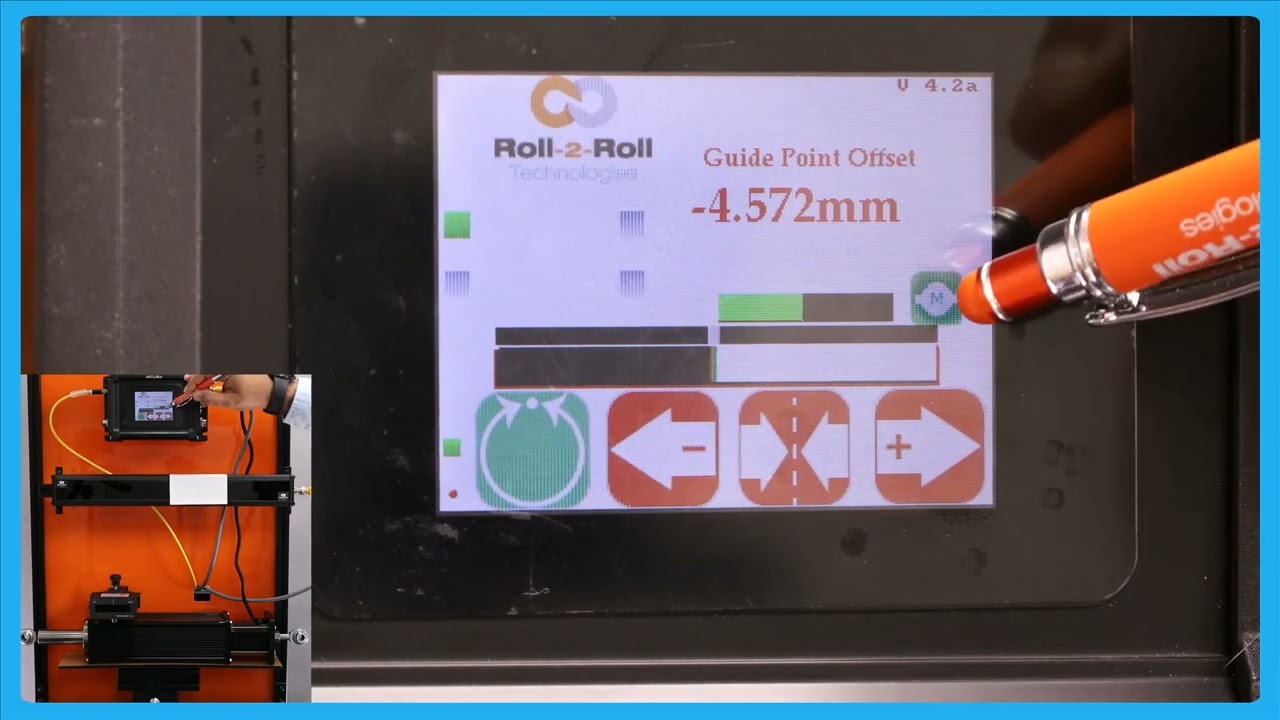
In this video, we explore the features and safety measures of the web guide controller when set to automatic mode. Key highlights include the operator lockout during automatic mode of the controller, which automatically disables the tools icon and various parameters like the edge sensor, contrast, speed, and gain. We also examine the limitations imposed on the operator's control, such as the inability to change sensor orientation or switch sensors.
Transcript
Show full transcript (367 words)
one of thing that happens when we put the web guide in automatic mode is that this pools icon is going to disappear um I'll do that and you can notice that the proven automatic the tools icon disappears so essentially when the web guide is in automatic mode the operator cannot go away and change any parameters related to the edge Center or contrast or anything related to the speed the G none of those parameters could be changed while the webite is not attack just a safety just so that we don't intentionally cause any cor when the webc isn't on so that's what that one is the only screen that the operator can navigate to is going to be this screen and that's going to show you the actuator position in a bigger view the operator cannot go into any other screen while in automatic mode the other thing that you're going to notice when the web guide is in automatic mode is take a look at these sensors when I put it in automatic mode the buttons so those buttons are disabled again same idea when you are an automa we don't allow the operator to change the orientation of the sensor so if they can't enable or disable the sensor they cannot switch from one sensor to sensor all of these things have to be done a pror before they put it in the automatic one and then again reset G point if you put it in automatic mode that disappears so they won't be able to make any big adjustments to the gate point the only exception to that is to reset that gate point to zero as the only thing that they can do and that's the reason why we say that when you do a reset gr point to zero and be really careful um and do only when you needed and that's the reason why we have that accept button so if somebody presses that by the St we don't necessarily have to take that command unless the operator intentionally presses accept if it doesn't press the accept button then it go back to the previous gr point
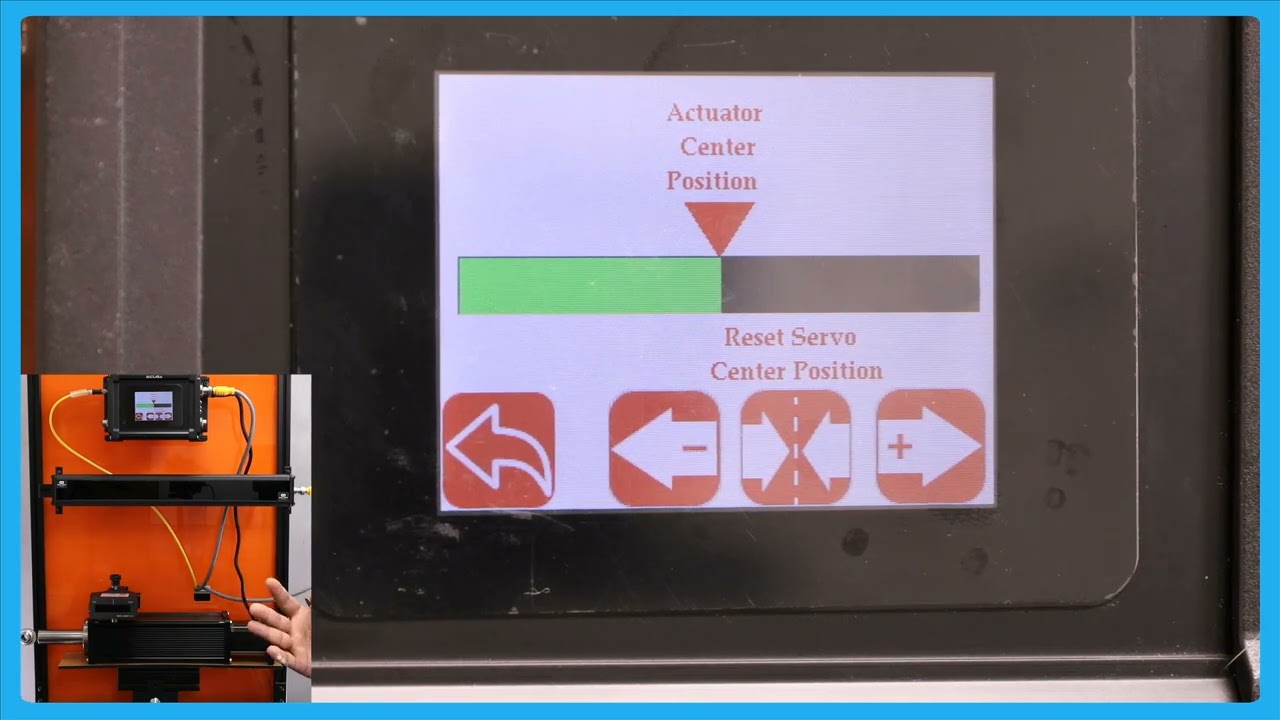
In this episode, we delve into the details of the SCU6x Controller's features, specifically the actuator position bar and the servo center button. By pressing the motor icon on the home screen, users can get a larger view of the actuator position, allowing them to observe the movement of the web guide. The video highlights the importance of understanding the distinct functionality of the servo center button compared to its role on the home screen. Viewers are encouraged to watch subsequent videos to fully grasp these features before using them.
Transcript
Show full transcript (97 words)
one other thing that we have is basically this actuator position bar if you press that motor icon on the hle this let you see a bigger view of the aurator position K in this case if the web tag moves back and forth you can see that actuator bar will move back and forth one thing to note about this Servo center button is that this has a different functionality than what it is in the home screen so we recommend that you take a look at the subsequent videos about this functionality before using this
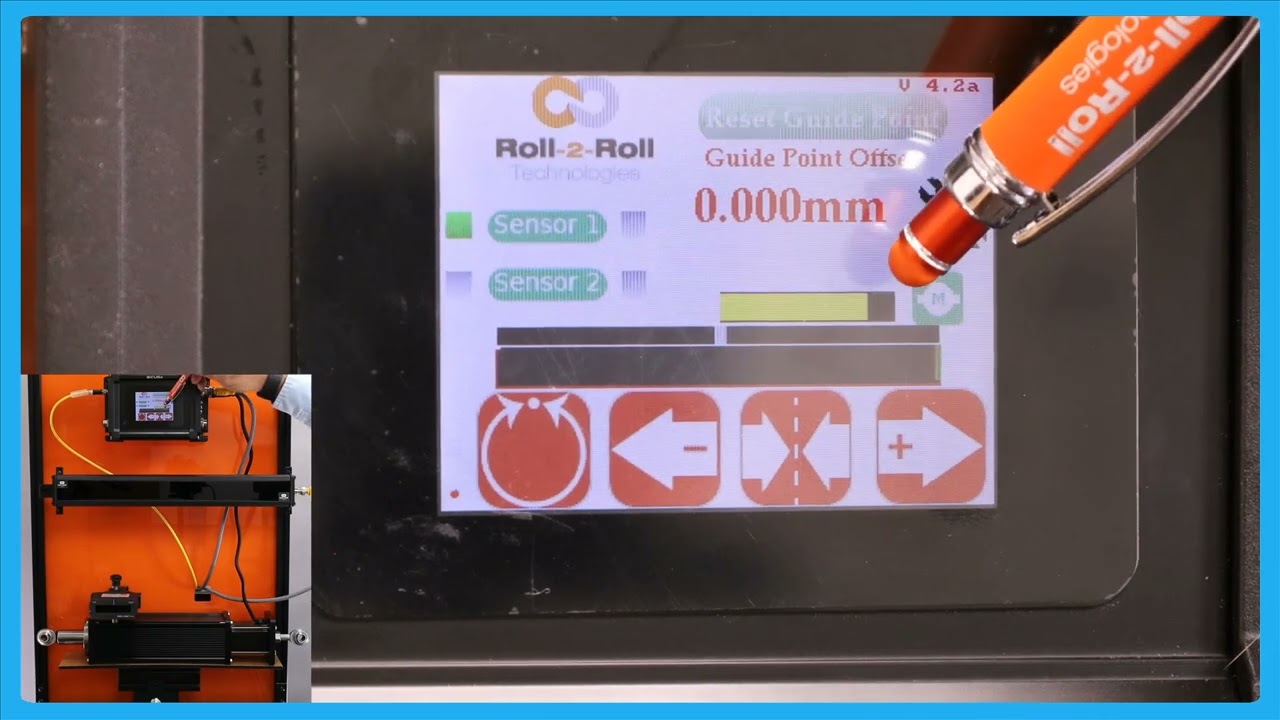
In this episode, we delve into the functionalities available on the home screen of the SCU6x Controller. The video also explores the actuator position bar, explaining how it indicates the position and status of the actuator, including visual cues when nearing stroke limits. We also touch upon the electronic limits set within the controller and how they influence actuator movements.
Transcript
Show full transcript (324 words)
everything that the operator need should do on a day-to-day basis can be done from the home screen for example things like putting the web guide in automatic or manual jogging the web guide back and forth and then putting the web guide in the symol center mode the first and foremost thing with with regard to the actuator is this actuator position bar this bar is going to indicate the position of the actuator and this position is the electronic position that is being read by our driver right now the actuator is in the middle as we jog the web guide you should see that actuator position to be changing and then there's also visual indication of when the actuator is getting near to its extreme position and that's indicated by this um yellow and then if you keep moving it turns red which means that there's really not much left in the actuator position so this is indicating that it's reaching its stroke Lane now in terms of the stroke of the actuator these are all electronic limits that we have in the controller in subsequent videos we will talk about how one can change those limits based on what the actual actu stroke T takes like that so this is the J if I press this one you should be able to see that go J left and it'll do the same thing if it goes to a certain position where it's getting closer to its extreme it's going to be yellow they keep going let SC the get red and then if it's off the screen even if the actuator presses this button um nothing happens and that's because the actuator is reached this limit there so it will not move in that direction however it will move in the other direction so that's the actuated position more then we saw the jog left and J right command there