

Setting Nominal Width, Upper and Lower Limits for Multiple Web Width Measurement
Transcript
Show full transcript (798 words)
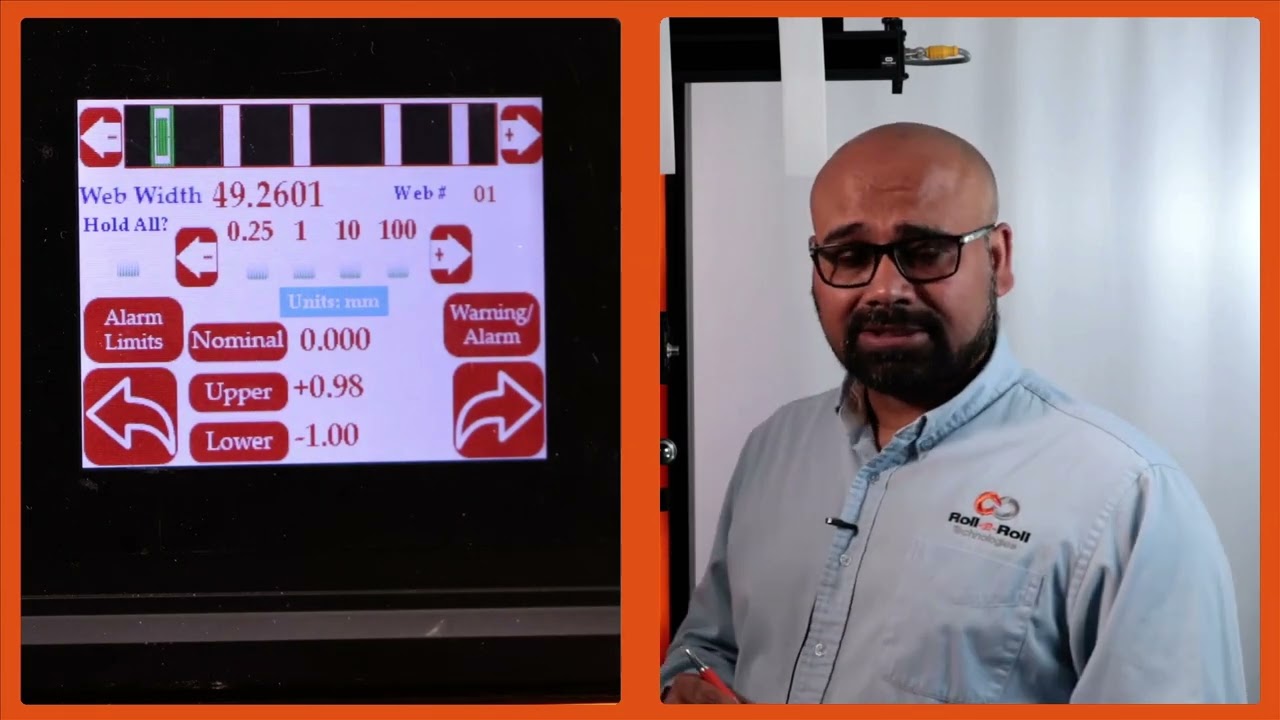
Then like I mentioned for each web we can set an nominal width, upper limit and lower limit. Right now I'm going to show you how we can set those things. So in order to set the nominal width we're going to press that nominal width icon and then we're going to choose how much increment we want to make. So I'm going to do 10 mm increments here.
So I'm going to change that to 50 mm. Okay. So the nominal width is 49.24. That's it.
There's no need to save anything here. Anytime you change that, that parameter is automatically saved and saved into the memory. So when you power cycle it, it comes back in. Likewise, you can set the upper limit and the lower limit.
So you choose the parameter that you want to change and pick the increment. If I do 1 mm increment that's going to be like that and you can do it like that. It's very simple intuitive way to change it. And likewise you can change those things too.
Now there are applications where we would have two types of outputs. One is to say that if my width is above a certain upper limit or if the width is below a certain lower limit you want to trigger an output there. So in those cases we would have something what we call as that upper limit lower limit kind of thing. So this is a pretty simple setting.
All that we are looking for is hey if the width goes above my upper limit trigger an output or if the width goes below the lower limit trigger another output. So just two boundaries and then within the nominal range the output is not triggered all good signals are provided. If you want an additional layer where you want to set alarm limits and warning limits then we can do that too. So in this particular case then you need to make sure that it is in alarm and warning.
When you have this in alarm and warning you have this button show up just to show you one one more time. If I have it just on upper and lower limit these are the two parameters we can enter. But if we are in warning and alarm there are four parameters you can enter. The first two parameters are here and the second two parameters are warning limits.
warning signal so that you don't have to stop the machine when the warning signal is there. This is just for the operators to know something is getting to get bad and once it hits the alarm limits then you can stop the machine if you wanted to. Just like I mentioned the warning limits are going to be closer to your nominal width and the alarms are typically farther away from there. So in this case we have it set as plus or minus.5 mm and then this is plus or minus.1 mm for that and you can do that for every single web.
You can set the upper limit, lower limit, alarm and warning limits. Right now for web two it's not set up. Web three you can see what is set up there. None of these are set up there.
But that's the way for us to set this up for the alarm and warning so that when the width changes you have the ability to provide a digital output to a stack light or something like that. So that is essentially how to set the multiple width measurement these warnings and alarms. And again just to go through this one more time I'm going to pick width two. I'm going to set that nominal width to be 49 point let's say.5 there.
So I am in warning and alarm. So I'm setting the alarm limits for this. So I'm going to set this as 1 mm and the lower one as 1 mm as well. And alarm I'm going to set this as 0.5 and 0 five for that.
And then you can keep doing that for multiple webs. And if you go back here, you can see for the different values, different webs, you see different values there. When I go from one to another, you got all of these set there. All of these are saved in the memory.
Then you have that option to do it. This is where you use the controller. An operator is manually setting this. All of this can be automated through Ethernet and you can send a recipe to our controller to say web one should be this width.
The upper limit is this and the lower limit is this. Upper warning limit is this and lower warning limit is this and so on and so forth.
How to Access the Operator Width Screen
In this video, we guide you through the steps to access the operator width screen from the home screen. Start by pressing the tools icon, followed by the operator icon located at the top right, and then the width icon. You'll first arrive at the operator width home screen, and there's an additional setup screen available where you can perform further setup tasks.
00:00 Accessing the Operator Width Screen
00:17 Operator Width Home Screen Overview
00:21 Additional Setup Screen
Transcript
Show full transcript (57 words)
To get to the operator width screen from the home screen, we're going to press the tools icon, then the operator icon on the top right and then the width icon. This first page is the operator width home screen. The second page is an additional setup screen where you're able to do more setup related things.