

Roll-2-Roll Technologies introduces their sophisticated splice detection system using the 1DC480 sensor. Demonstrating at speeds up to 1000 feet per minute, the video showcases the sensor’s capability to detect various splice types, including bright, dark, and transparent splices, alongside voids and defects. The sensor's versatility is highlighted as it differentiates between splices and web instability without the need for reconfiguration.
Transcript
Show full transcript (1449 words)
Hello everyone, Arvvin Shadri from Roll for Roll Technologies. Today we're going to show a little bit about our splice detection system. Right now we have the 1DC sensor set up so that it can detect a splice. We just [music] saw a thing splice go through.
Whenever the splice is detected, we have a stack light and the output from the 1DC sensor is triggering a stack light. Apart from a splice, we can also detect voids or defects. You saw a big hole go through and a couple of labels go through right [music] now. So essentially, we can look at some surface defects by looking at the image we are getting from our 1DC sensor.
There's another hole coming through or tear was able to detect that. We have some [music] web instability like you see there. a little bit of a standing wave of wrinkles going through, but that is not being triggered. The sensor is able to distinguish between a splice and some web [music] instability and not trigger for that web instability.
At this point, we're running at about 200 ft per minute just to give you an idea of how the system [music] works and also for you to actually see the splice as it goes through. What we are going to do a little bit later is that [music] the same set of splices. We're going to run it at a much higher speed and see how that works. We do have different types of [music] splices.
Essentially, there's no setup. There's one condition it has been running on [music] and it can detect a hole, a bright splice, a dark splice, a transparent splice, and even a butt splice. So, we do have a transparent splice that is going to come up here. I'll point out when it comes up, but doesn't matter what it is.
Unlike other splice detection systems, we are able to detect all of these different types of splices without making any changes to our controller or the sensor configuration. our 1DC sensor which is 1DC 480 which has [music] about 7,600 pixels and all of this is running at about 200 [music] times a second. So even a bud slice or a really difficult to detect transparent splice, we're able to see [music] that. And sometimes it might be a high contrast splice like a pink material that we are seeing right here and we were able to see that.
The main challenge with splices is that the splices can have different colors. It can vary in the contrast difference between the material and the splice itself. And sometimes it's a hidden splice. That's what we're [music] going to see next.
We have a bud splice where we we have a double-sided tape that is going through right here. It came through. And [music] you have uh two layers of material on top of a double-sided tape. So, you don't even see the tape.
You see the material. It was able to pick that up. And just to give you an indication about different colors, we have a dark color splice coming through and it still picks it up. The other common thing that we get asked about is that how long of a splice tape can we detect?
So, for example, right now we're going to have a shorter tape, a darker shorter tape [music] that comes through. It's able to detect that. That's about a 1 in tape going at 200 ft per minute. We can also detect darker colors or tapes.
As long as there is a contrast difference between the material and the tape, we'll be able to detect that. That's what we want [music] to showcase. Here we have a darker tape coming through. As you can see, it can detect that, too.
Sometimes the [music] splice may not be on the right side. In this demonstration, we're going to show that as well. And obviously, a smaller splice tape, can we detect it? We'll look at tapes coming on different sides of the material and can we still detect that or not?
Another darker one came through. [music] We're able to detect that. While we run this, this is at a slower speed so that the user can actually [music] see the splice. Once this is done, we're going to run it at a much higher speed.
So, this particular sensor, ODC 480, like I mentioned, it's running at 200 hertz or 200 times a second. So, it's able to capture the image, process the image, and send an output within 4 milliseconds. If we have a smaller viewing area, it can run faster up to about thousand hertz of [music] processing speed with these sensors. We are taking that input, processing it [music] and sending an output through EtherCAT.
In this case, this output is connected to our PLC and then the [music] PLC is actually triggering the flag. Now, here's an example where the splice is not on the right side. If you caught it, you can see that the splice was on the other side of where that camera was looking at. Just to give you an example again, another one where the splice was on the other side and we're able to detect that as well.
There is a little bit of splice tape that was folded over and we're still able to pick that up even though the splice is not on the right side of it. just to highlight the versatility of our sensing system in order to be able to detect the different types of splices, different variations in contrast, the way that an operator would do that. Now, another transparent kind of splice coming through. Here we have a transparent tape that [music] is splicing together the material.
And as you saw, it was still able to pick it up and do it. Another one where the splice is on the wrong side. We're still able to pick it up. We can't guarantee that it'll pick up all the time, but most of the time we can still pick it up.
And that's what we are trying to demonstrate here. Another example of a splice. It's a transparent tape and then splice on different spaces. We're able to do all of these.
So, this is just an example of how our splice detection works. In the following, we will speed it up and run it at thousand feet per minute. So you can see how it's able to perform even at higher speed as long as we're able to see it. Again, another transparent splice coming through.
And we can also detect some holes as we saw before. We're able to see some holes and tears and essentially void detection and anomaly detection. All of these things we'll be able to do. So, let's now look at [music] it at a higher speed and see how it does.
Now, we ramped up,000 [music] ft per minute. Some 1 in gray tape went through. A 1in spring tape went through. A 2-in gray tape went through.
A 1-in gray tape went through a dark green splice, a budge slice, a pink tape, a transparent one. Now we are at the end of the roll, so we're going to slow down and then reverse direction again. And there was a label that went through and then a hole or a tear label went through. And then another pink tape.
Now the machine is going to pause and then it's going to go in the reverse direction. And we'll see the same thing in the other direction as well. Heat. Heat.
Here you go. all these places at full speed. So we were ramping up from anywhere from 500 feet per minute to 750 and the max speed was about,000 ft per minute, we were able to catch all the slices, [music] even the butt slice at 1,000 ft per minute. The main thing is that even if the contrast [music] difference between the material and the splice is low, this algorithm that we have for splice detection is able to catch that.
And best of all, you can use this not only for detecting splices but also tears in the web, holes in the web, voids in the web. And we'll have more videos talking in detail about this. Once again, Arvin Sashadri from Roll to Roll Technologies. Take a look at our 1DC sensor [music] for more information about how you can use it not only for edge detection, width measurement, but also defect detection like splice, void, stairs, and the foreign matter on the material.
Make sure to subscribe and enable the notification. Thank you.
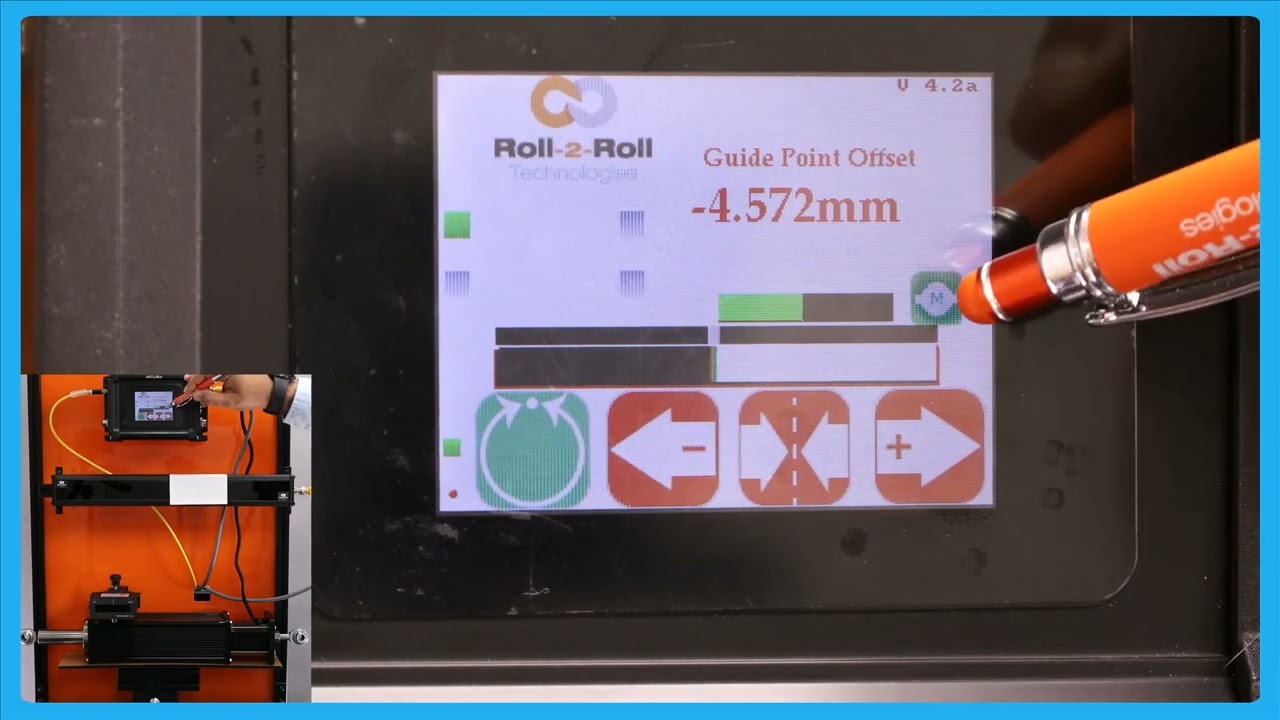
In this video, we explore the features and safety measures of the web guide controller when set to automatic mode. Key highlights include the operator lockout during automatic mode of the controller, which automatically disables the tools icon and various parameters like the edge sensor, contrast, speed, and gain. We also examine the limitations imposed on the operator's control, such as the inability to change sensor orientation or switch sensors.
Transcript
Show full transcript (367 words)
one of thing that happens when we put the web guide in automatic mode is that this pools icon is going to disappear um I'll do that and you can notice that the proven automatic the tools icon disappears so essentially when the web guide is in automatic mode the operator cannot go away and change any parameters related to the edge Center or contrast or anything related to the speed the G none of those parameters could be changed while the webite is not attack just a safety just so that we don't intentionally cause any cor when the webc isn't on so that's what that one is the only screen that the operator can navigate to is going to be this screen and that's going to show you the actuator position in a bigger view the operator cannot go into any other screen while in automatic mode the other thing that you're going to notice when the web guide is in automatic mode is take a look at these sensors when I put it in automatic mode the buttons so those buttons are disabled again same idea when you are an automa we don't allow the operator to change the orientation of the sensor so if they can't enable or disable the sensor they cannot switch from one sensor to sensor all of these things have to be done a pror before they put it in the automatic one and then again reset G point if you put it in automatic mode that disappears so they won't be able to make any big adjustments to the gate point the only exception to that is to reset that gate point to zero as the only thing that they can do and that's the reason why we say that when you do a reset gr point to zero and be really careful um and do only when you needed and that's the reason why we have that accept button so if somebody presses that by the St we don't necessarily have to take that command unless the operator intentionally presses accept if it doesn't press the accept button then it go back to the previous gr point
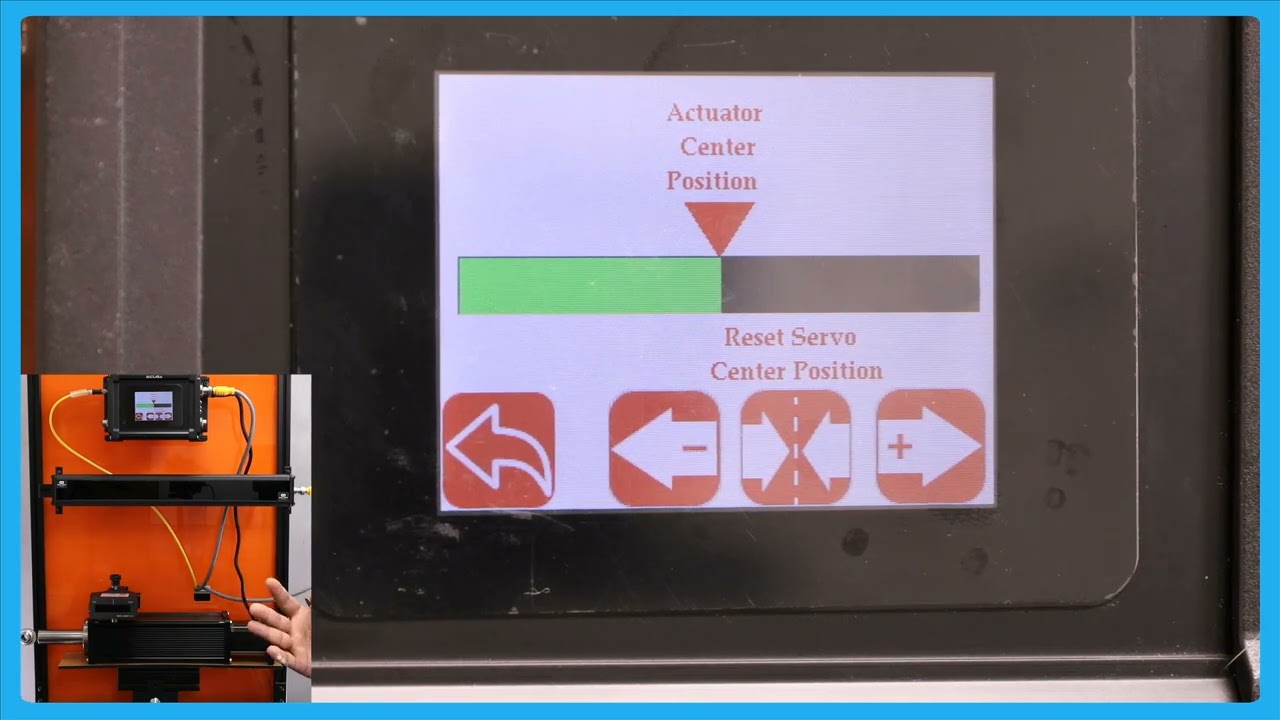
In this episode, we delve into the details of the SCU6x Controller's features, specifically the actuator position bar and the servo center button. By pressing the motor icon on the home screen, users can get a larger view of the actuator position, allowing them to observe the movement of the web guide. The video highlights the importance of understanding the distinct functionality of the servo center button compared to its role on the home screen. Viewers are encouraged to watch subsequent videos to fully grasp these features before using them.
Transcript
Show full transcript (97 words)
one other thing that we have is basically this actuator position bar if you press that motor icon on the hle this let you see a bigger view of the aurator position K in this case if the web tag moves back and forth you can see that actuator bar will move back and forth one thing to note about this Servo center button is that this has a different functionality than what it is in the home screen so we recommend that you take a look at the subsequent videos about this functionality before using this
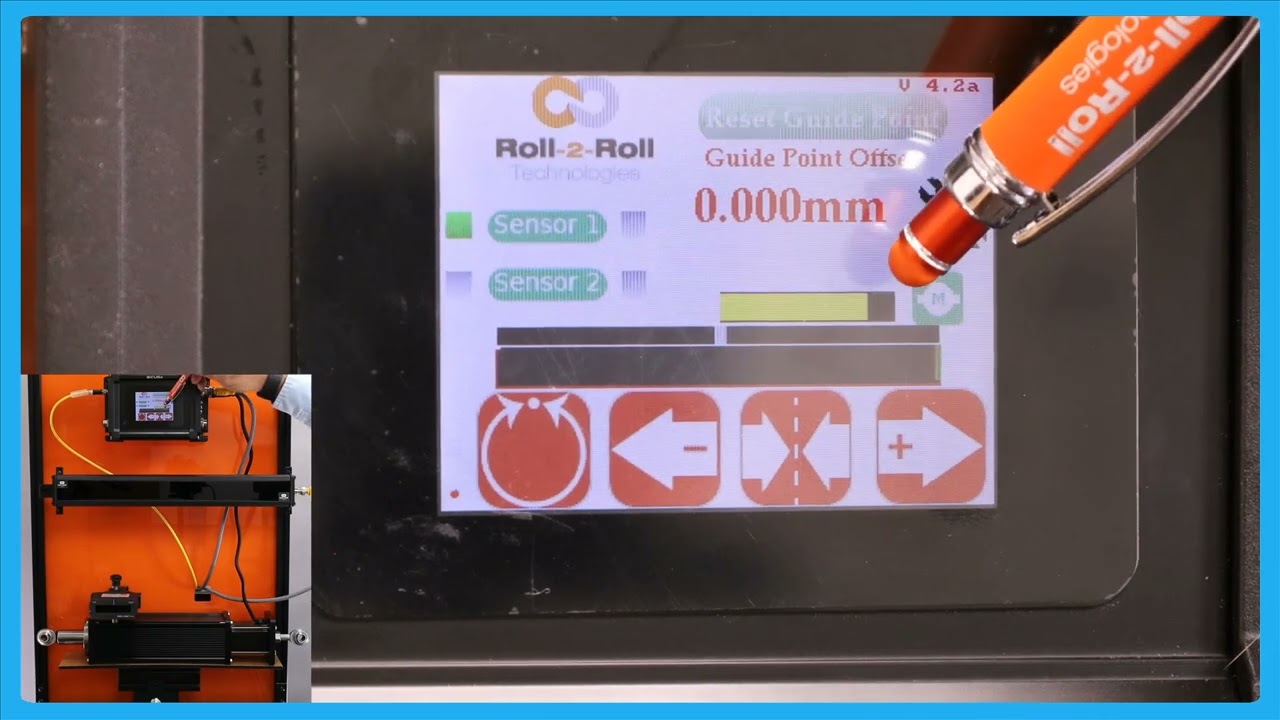
In this episode, we delve into the functionalities available on the home screen of the SCU6x Controller. The video also explores the actuator position bar, explaining how it indicates the position and status of the actuator, including visual cues when nearing stroke limits. We also touch upon the electronic limits set within the controller and how they influence actuator movements.
Transcript
Show full transcript (324 words)
everything that the operator need should do on a day-to-day basis can be done from the home screen for example things like putting the web guide in automatic or manual jogging the web guide back and forth and then putting the web guide in the symol center mode the first and foremost thing with with regard to the actuator is this actuator position bar this bar is going to indicate the position of the actuator and this position is the electronic position that is being read by our driver right now the actuator is in the middle as we jog the web guide you should see that actuator position to be changing and then there's also visual indication of when the actuator is getting near to its extreme position and that's indicated by this um yellow and then if you keep moving it turns red which means that there's really not much left in the actuator position so this is indicating that it's reaching its stroke Lane now in terms of the stroke of the actuator these are all electronic limits that we have in the controller in subsequent videos we will talk about how one can change those limits based on what the actual actu stroke T takes like that so this is the J if I press this one you should be able to see that go J left and it'll do the same thing if it goes to a certain position where it's getting closer to its extreme it's going to be yellow they keep going let SC the get red and then if it's off the screen even if the actuator presses this button um nothing happens and that's because the actuator is reached this limit there so it will not move in that direction however it will move in the other direction so that's the actuated position more then we saw the jog left and J right command there
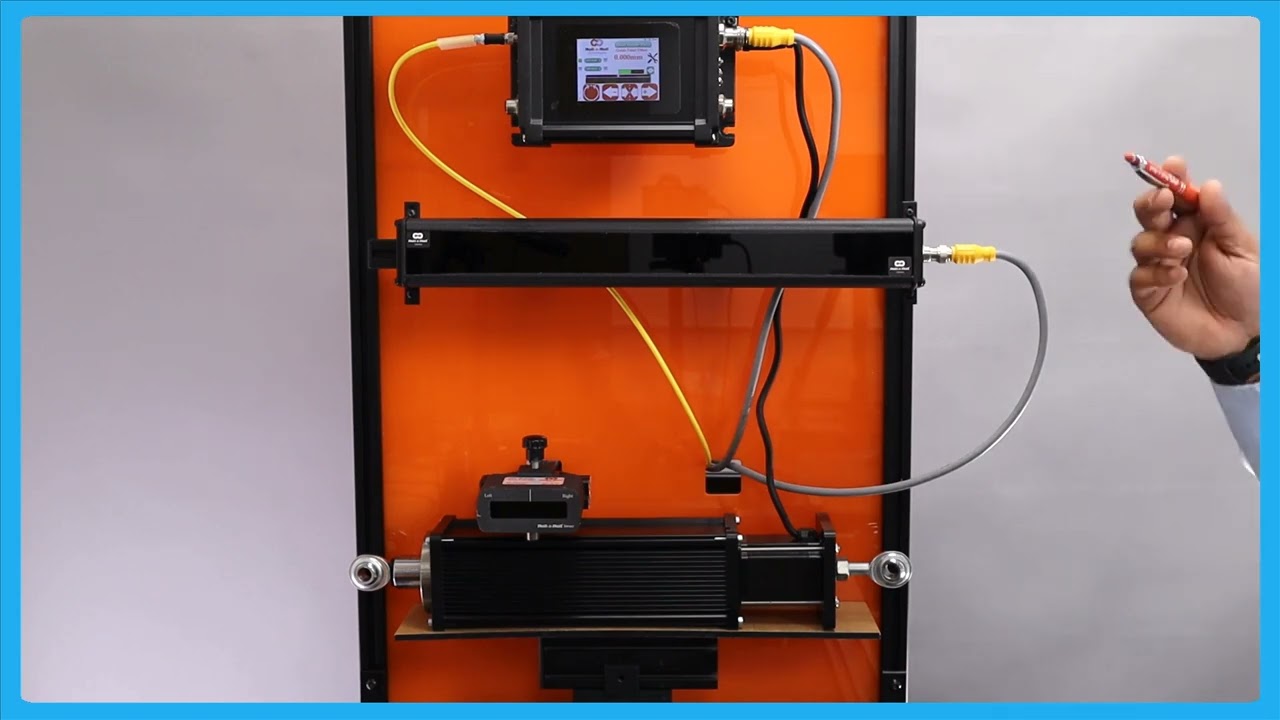
In this video, we dive into the SCU 6X controller and its capabilities. We discuss both the SCU 6X MD and SCU 6X MXD models, focusing on their use with low and high thrust actuators. You'll learn about the specifications, including current draw and thrust force, as well as the different connector and power input requirements for each model. Perfect for anyone involved in web guiding technology.
Transcript
Show full transcript (243 words)
so what we have today is our SCU 6X controller this is SCU 6X MD and we have one sensor connected to it then in the motor port we have an actuator connected to it right there seu 6X MD and there is another option SCU 6X mxd both of these options are allowing us to connect different thrust actuators for example this particular one Su 6X MD has the low thrust option where we have an actuator that can drive up to about 300 lb force of trust anything related to intermediate web guiding this will be the actuator for that this particular actuator can draw up to 4 amps of CCT when we go to a higher prust the part number is going to be a little bit different it's going to be s use 6X mxd where the X relates to the extra in that we need and that particular one can drive up to about 500 lb of thrust so a shifting stand with the total weight um of no more than about 5,000 lb can be driven with that actuator the only difference would be the connector here would be a little bit different on this side now it'll be a high thrst a high current connector and then for that particular actuator we would also need a different power in the Dual rear power input will have 7 amps up to 7 amps for that we also can do up to 48 H VC
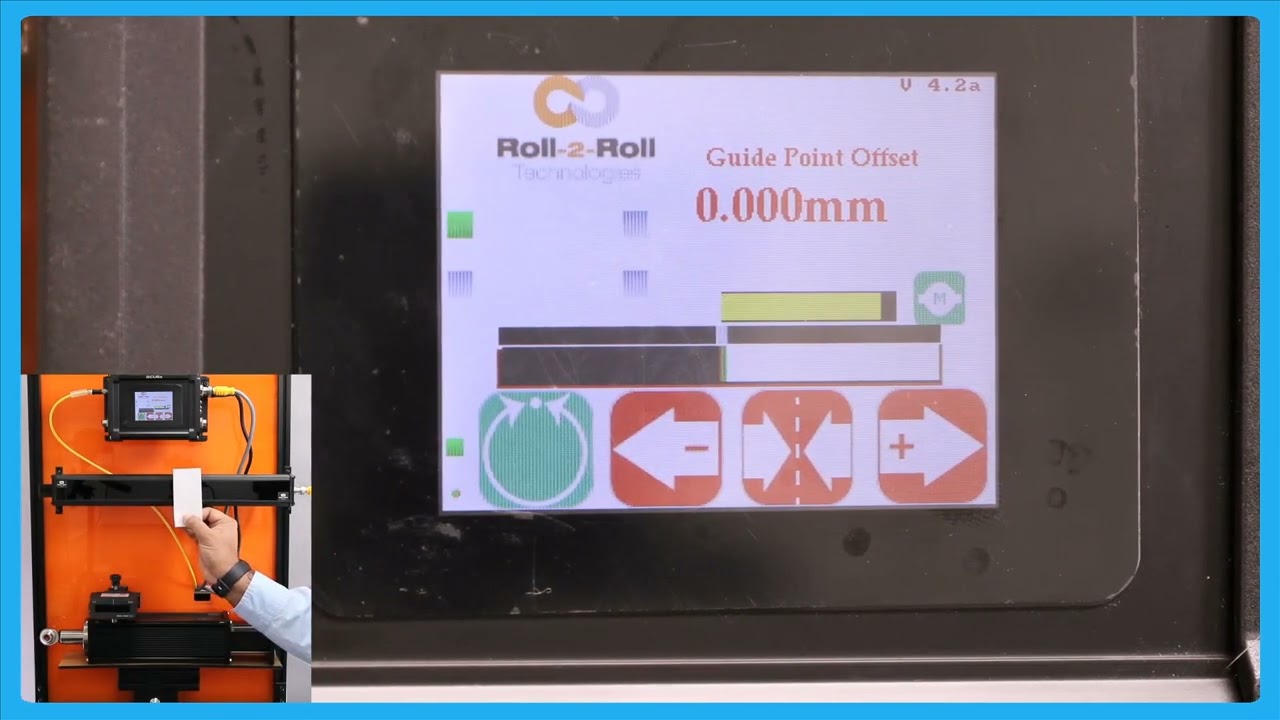
In this episode, we delve into the functionalities of the SCU6x Controller, focusing on the manual movement of the actuator to aid in the loading and unloading of the roll. The highlight of the video is the automatic web guiding system, which ensures the web is steered to its correct position. The presenter demonstrates how the actuator responds to the positioning relative to the guide point and explains the actuator's movements and limitations based on error correction.
Transcript
Show full transcript (211 words)
okay this is about moving the actuator manually to facilitate loading and unloading the r but the real thing with our system is basically it does guide the web automatically to its desired position so just to show you that let me present the web put the web guide in automatic mode so as you remember that the gray bar in the middle is basically our G point and if we are on one side of the G point the actuators will move one way if we are the other side of the G point the actuators for to M be away and it's that's out it's stting the we and then the actuator position bar indicates what the stroke of the actuator is and obviously once a r it stroke it doesn't matter how much eror we have the accelator is not going to move in that direction but if the eror is f on that direction then the aurator is for Mo and you that in for BL so this is the automatic feature of our web guing system and right now I'm using a single edge to gu the material and it doesn't matter if I have one Edge or two edges it will do the same thing
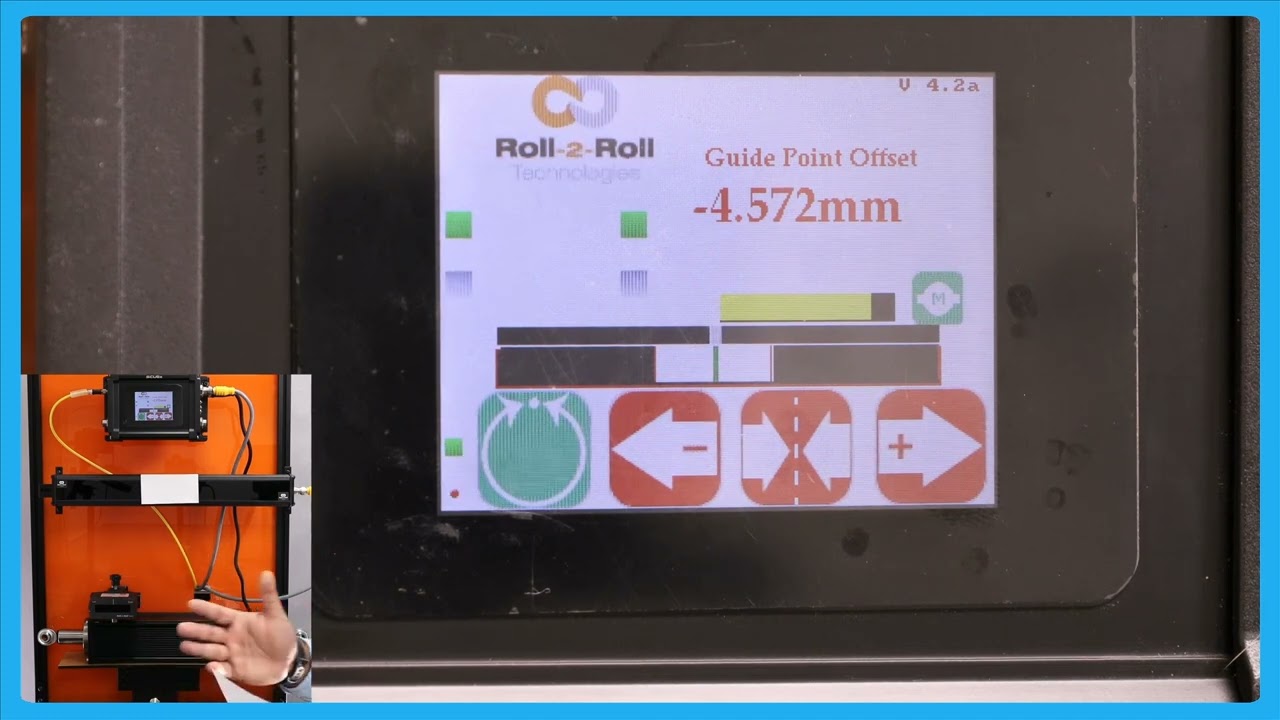
In this video, we explore the process of center guiding using a single sensor. Unlike edge guiding, which focuses on one edge, center guiding utilizes both edges, making it highly effective for managing changes in web width. The tutorial covers setting up the sensor to detect the web's voltage, aligning the web's centerline with a guide point offset, and maintaining the center position with the actuator.
Transcript
Show full transcript (421 words)
so the next thing that we're going to look at is we showed how to do Edge guiding with a sensor now we're going to do how to do Center guiding with the sensor so I'm going to change this orientation sensor orientation so that sensor one can detect voltages of the web and that's what it it's detecting and as you remember from our previous video when we do Center gu and the GU the reference for the web is not based on one Edge actually based on the two edges so that's what is presented by this green bar so if I move the center line of that web to this green bar to this point box act and then put it an auto then when that Center Line changes position that's how we're going to guide it essentially s guide so what is the advantage of Center guiding is that when you hand weight changes you don't have to move the sensor as long as you get Point offside is the right location so for example if I put another web that's wider you can do a on the Fly Wick change with one to another web Wick and it will automatically guide and either one in a SLE L position and that's one of the biggest Advantage with a center diting solution is that when the wit changes let's say it have some variability in your Bri your web will always be presented to the center line of the machine as long as the center as long as the sensor is set up properly then you can bring it to that Center Line position with respect of the quadr or half an inch we with so in terms of Center guiding Center position is represented by the green bar and then the web guide is going to keep that Center position um I'm moving the actuator back and forth so that green bar aligns with that gray gray T point and preference as it should so that's the main difference between Edge guiding and Center Tiding again you still have that option of web break so the web braks it will stop actuating and it will start back actuating when the web is stressing and then obviously it's going to do it it's going to stop until the web reaches its B Point reference if the WID ches doesn't matter that's long red W the center line set so that's Center D with with a single sensor
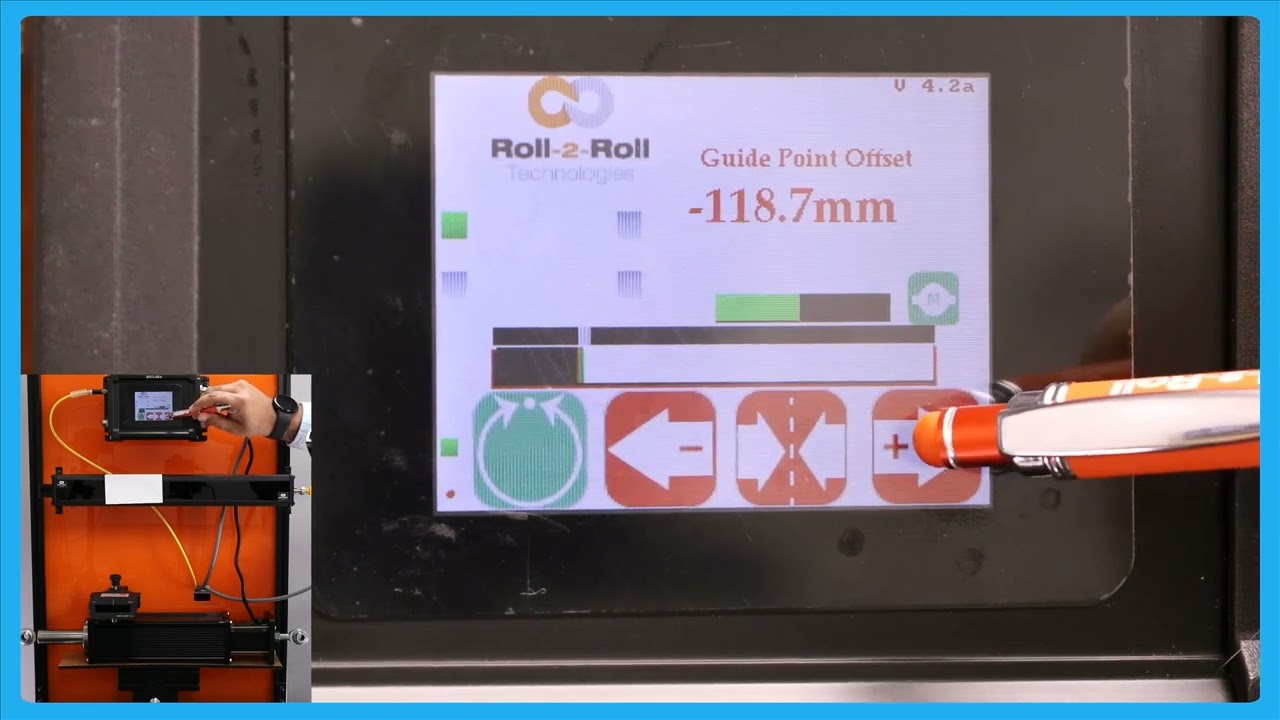
In this video, we delve into the intricacies of making fine guide point adjustments in web guiding systems, particularly during processes like lamination. Traditional methods use a micrometer screw for adjustments, but this video explains how to make precise, real-time guide point changes automatically. Learn how to adjust the guide point by increments of 0.1 millimeters, ensuring optimal alignment without stopping the web movement.
Transcript
Show full transcript (293 words)
now there are situations where you are guiding the web you got it at the part but you want to make a fine adjustment and with the traditional sensors there might be something like a micrometer and an operator needs to reach in and try to adjust that screw on the micrometer to move it back and forth to do what is called as a fine day point adjustment so think of it like a lamination process you got the wind allign guiding but you want to change that gide point just a little bit you don't want to make too much of an adjustment and you want to do that while the wind is running and that is what we call as a fine G point adjustment how to do the fine gate point adjustment right now the gate Point offset isus 119 mm and if I want to change that just a little bit then I if I want to increase that I can press that increases that the web gate is not going to move until it goes away from B so just to illustrate the SP thing now it reach the limit for the dead man and it's continuing there that's our fing G point adjustment so this allows you to be able to Mike uh make very fine adjustments to the guide point again the plus arrow allows you to increase that g point and minus Arrow allows you you would decrease that g Point that's what is called a fine G point adjustment and this adjustment can be done only when we are in automatic mode and then each press of that will take1 mm I think that's what it looks like1 mimet to move the gate BL
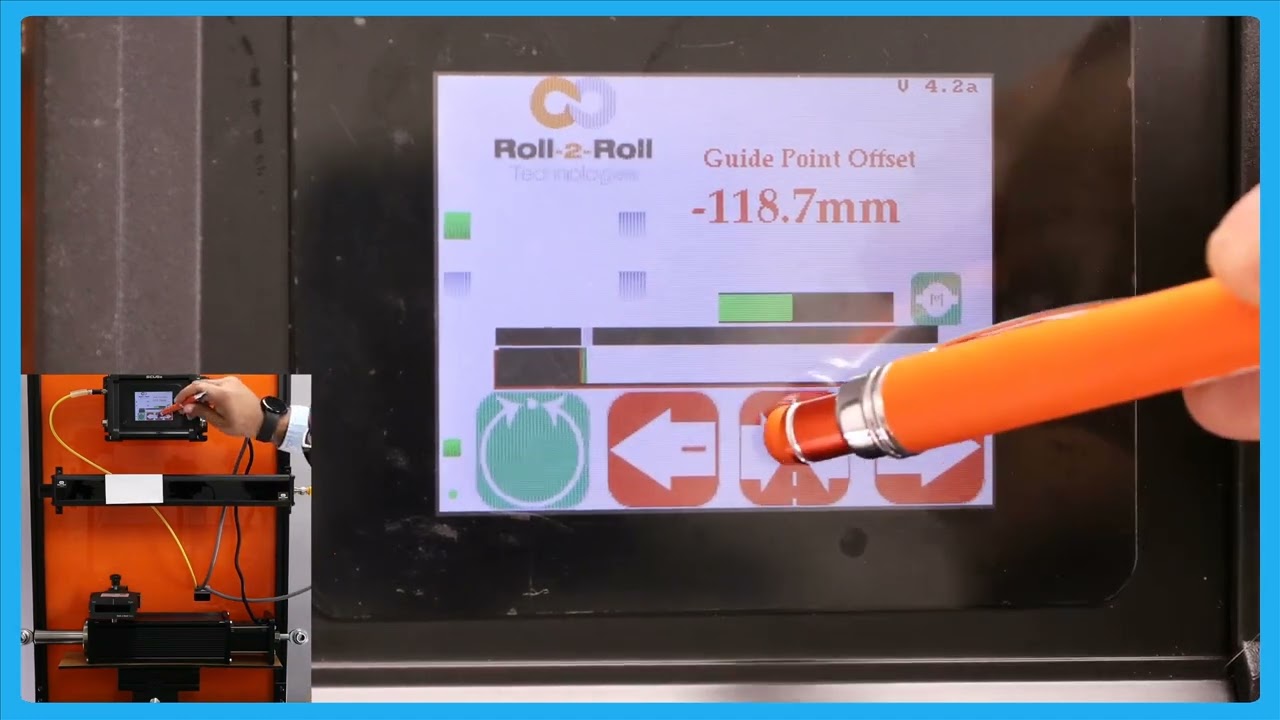
This episode provides a detailed explanation on how to reset the guide point offset to zero in automatic mode using the servo center button. The process is highlighted with caution due to its powerful impact on the guide point and web position, emphasizing that only knowledgeable users should perform this operation. Viewers learn how pressing the servo center button prompts a confirmation to reset the guide point, and accepting it results in moving the actuator to correct the web position to the new guide point reference.
Transcript
Show full transcript (234 words)
okay one other feature in terms of resetting the G Point how that we have is there are some occasions where you want to reset it to zero and this has to be done with extreme care and only people who know what they're doing should be able to do this and that's because this is very powerful and changes the G Point immediately so there might be some loation where you want to absolutely reset pick 8. to0 the best way for us to do that is while it is in a Ned did you press the servo center button it's going to show you that hey you want to reset the G point to zero do you want to accept it obviously if I accept it the web isit a different location it's going to go all the way to one side the actuator is going to go all the way one side because it's trying to correct for the web position again when you're in automatic mode if you press this Servo center button then it would allow you to reset the T point if I press accept the T point is going to be in the middle now basicly the actuator is newly because it's trying to bring the we toward its um to the gr Point reference that's the way in which you could reset the G point to see
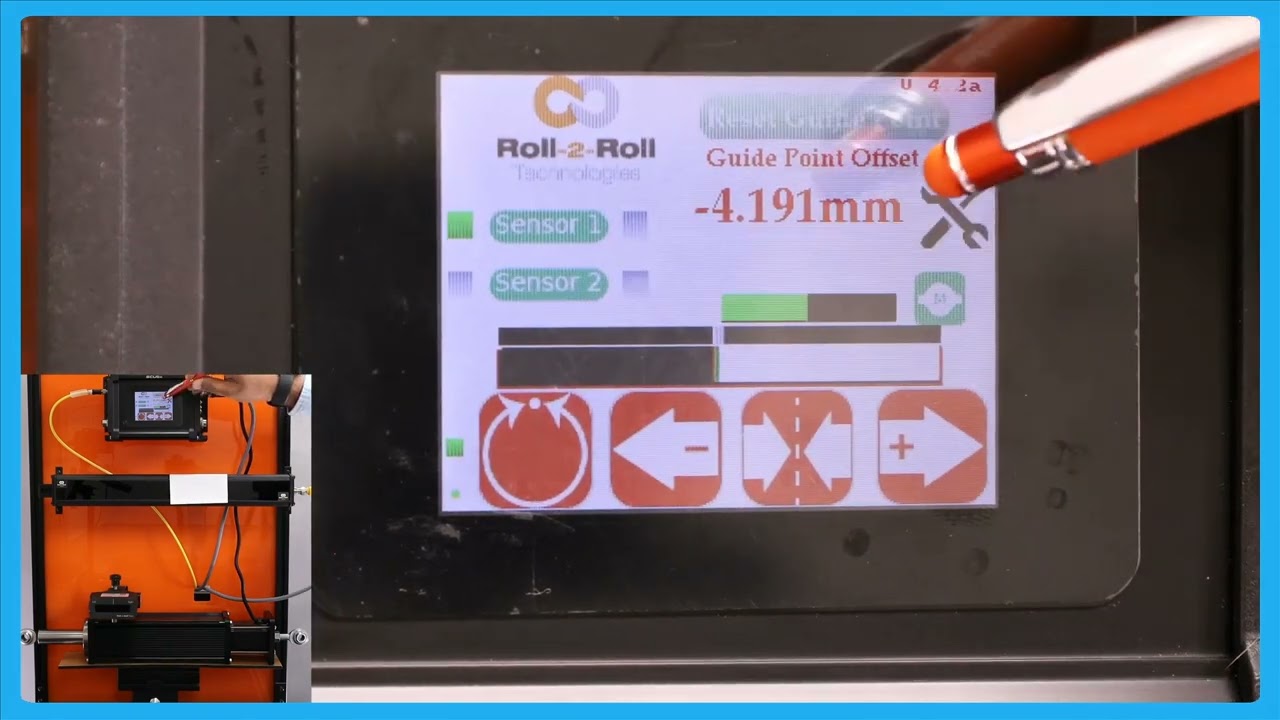
In this video, we revisit the concept of the guide point offset and how to reset the guide point using the SCU6x Controller. This technique is particularly useful when working with wide sensors and handling the web at different positions. The video walks through the steps of resetting the guide point, both in automatic and manual modes, ensuring precise guidance of the web. By following these instructions, you can maintain the correct positioning and handling of your web material, helping to enhance operational efficiency and accuracy.
Transcript
Show full transcript (179 words)
okay in our previous video we looked at the guide point offset basically how to reset the G Point again that is useful when you have a white sensor and you uh present the web like different locations so just to go over that one more time here I've got a white sensor here and the web is positioned at some point I'm going to go in and reset great Point except up there and if I put the we p in automatic it's going to stay in that position and if I need to change that date point to a new location when it's in manual and we can still do that the web isit this new location and I'm going to do the reset cway accept and when I put it in Auto in SC the actuator is staying in position because the web is at the point location and if I move the web to one side part the other it's little stop it's going to die with respect to that and that's the re cway